Explorer on wheelchair
View robot
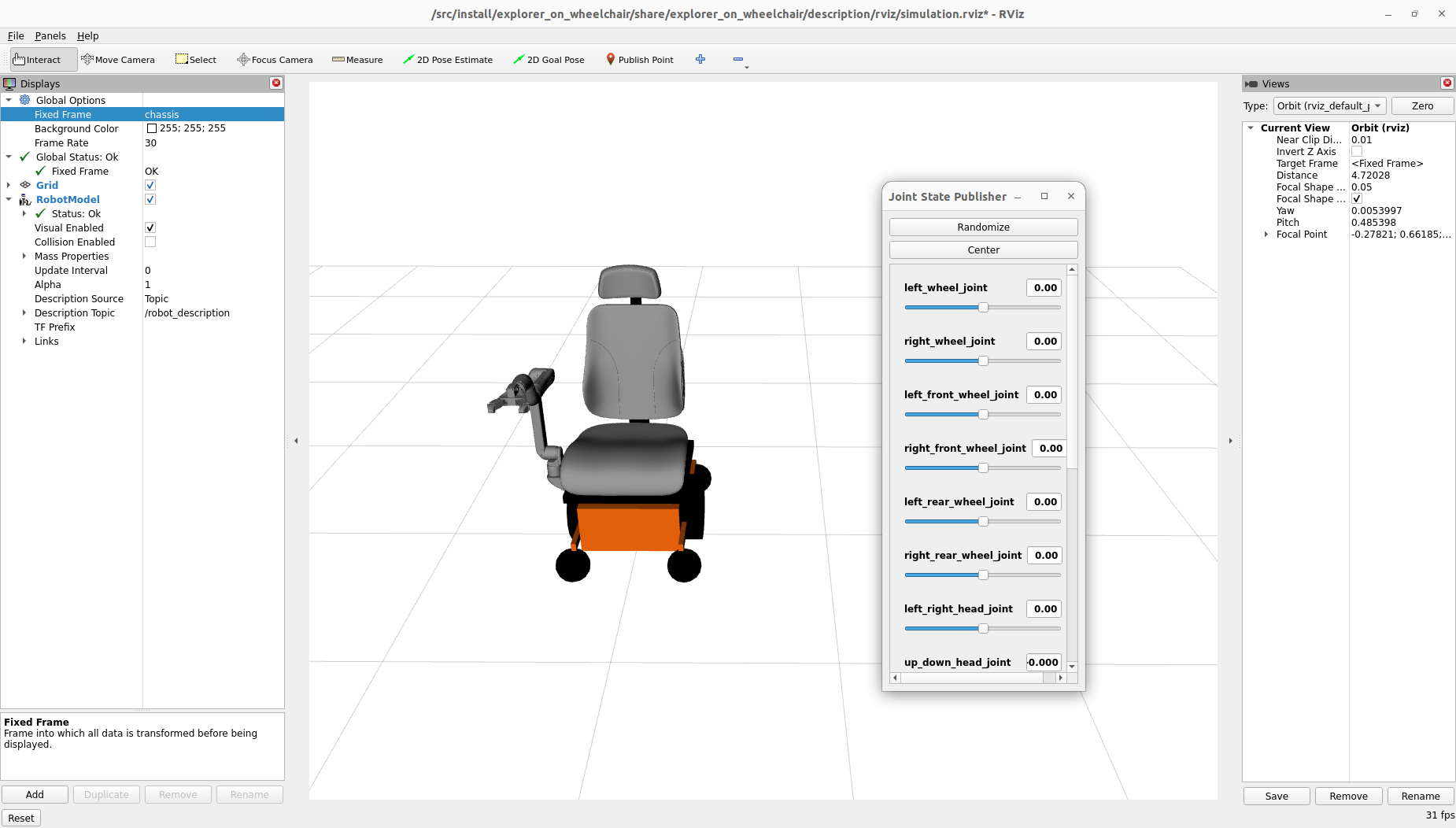
To view the robot, open a terminal and launch the view_explorer_on_wheelchair.launch.py file from the explorer_on_wheelchair package.
ros2 launch explorer_on_wheelchair view_explorer_on_wheelchair.launch.pIn the
In the field Fixed Frame change odom by chassis to see the Explorer on the wheelchair
With the joint_state_publisher_gui you can now change the position of every joint.
Simulation using Gazebo Fortress
Cartesian control
To launch the simulation using Gazebo with cartesian control, launch the simulation.launch.py file from the explorer_on_wheelchair package.
ros2 launch explorer_on_wheelchair simulation.launch.py
Tip
If you don’t want to launch RVIZ, add gui:=false when launching the simulation
Tip
If you don’t a 3D mouse, add spacenav:=false when launching the simulation
To control the robot, you can use the GUI :
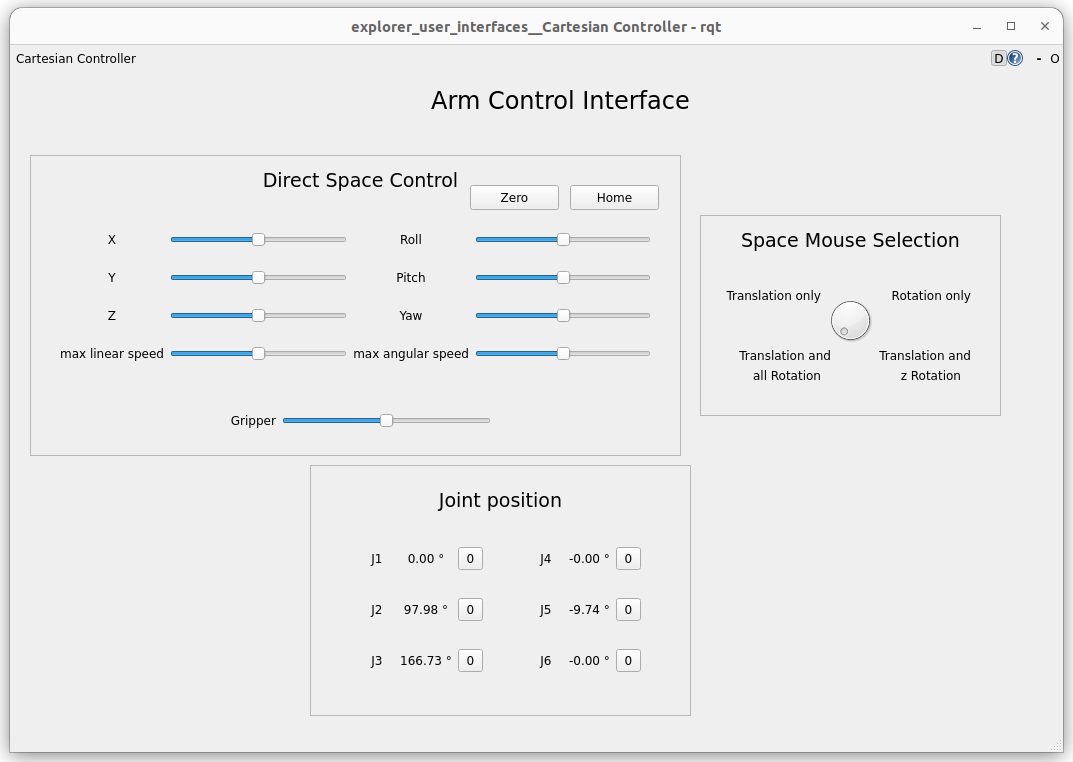
or 3D mouse.
And to control the wheelchair and the patient field of view, you can use the joysticks of an xbox one controller.